
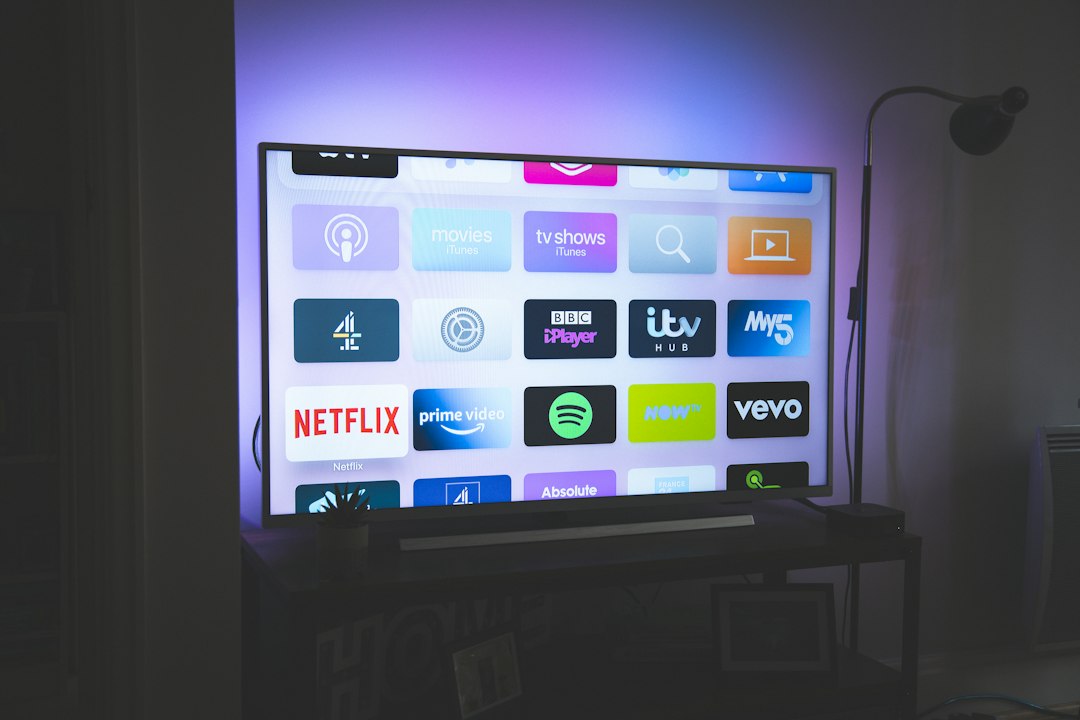
A slow streaming device is one of the most quietly annoying tech problems you can have. Nothing is technically broken, but every button press lags a half-second behind, apps take forever to open, and the home screen stutters while you’re just trying to find something to watch. Google TV devices are basically small computers running a full operating system on modest hardware, which means they respond to the same maintenance habits that keep any computer feeling fast.
The good news: most slowdowns are fixable in minutes, and the following sections break down exactly how — from the quick wins you can knock out right now to the deeper tune-ups that keep performance steady for months.
- What actually causes a Google TV device to slow down
- The 60-second fixes worth trying first
- How to clear cache without losing your data
- Reclaiming storage and cutting background bloat
- Home screen and preview settings that lighten the load
- Network tweaks that kill buffering and lag
- When a factory reset is the real answer
- How to tell if the hardware itself is the bottleneck
Why Google TV Devices Slow Down in the First Place
Understanding the cause makes the fix obvious. Most lag comes down to four things: limited RAM, full storage, too many background processes, and weak network performance.
Streaming devices typically ship with just enough memory to run smoothly on day one. Then you install a dozen apps, each one keeps a cached copy of images and video previews, automatic updates pile on top, and the home screen starts pulling in recommendation artwork from every service you’ve connected. Within a year, that tiny machine is doing significantly more work than it was designed for — and you feel it in every click.
The 60-Second Fixes to Try First
Before you dig into settings menus, run through this checklist. It resolves a surprising number of complaints on its own.
- Do a real restart. Not sleep mode — an actual reboot. Use the system restart option in Settings, or unplug the device for 30 seconds. This clears out stuck background processes and frees memory instantly.
- Check for system updates. Head to Settings, then System, then About, and look for a software update. Updates often include performance patches and memory improvements.
- Update your apps. Open the app store, find your installed apps, and update everything. Older app versions are often heavier and buggier than current ones.
- Force stop the app that’s misbehaving. If one specific app lags, go to Settings, then Apps, select it, and hit Force Stop. Reopening it fresh usually fixes the stutter.
Clear Cache, Not Data
Cache is the most underrated culprit. Every app stashes images, thumbnails, and temporary files to load faster next time — but that pile grows endlessly and eats the same storage your system needs to breathe.
Go to Settings → Apps → See all apps, pick a heavy app, and choose Clear cache. Do this for your main streaming apps and anything that shows lots of artwork. It’s completely safe: cache rebuilds itself, and you stay signed in.
Be careful with Clear data, which is a different button. That wipes your login and preferences, so you’ll have to sign back in. Only use it when an app is genuinely broken.
Reclaim Your Storage Space
Streaming devices get sluggish when storage fills up, because the system needs free space for temporary files and updates. Aim to keep at least 20% of storage empty.
- Uninstall apps you haven’t opened in months. You can always reinstall in seconds.
- Disable preinstalled apps you’ll never use. Many can’t be removed, but the Disable option stops them from running in the background.
- Clear downloads and offline content you’ve already watched.
- Remove extra user profiles if multiple accounts were set up and abandoned.
Lighten the Home Screen Load
The home screen is doing more work than most people realize. Recommendation rows, video previews, and ambient screensavers all pull data and render constantly. Trimming that load gives you a noticeably snappier interface.
- Turn off video previews and auto-playing trailers on the home screen.
- Reduce the number of app rows and recommendation channels shown.
- Set ambient mode to a simpler option, or disable it entirely.
- Remove apps from the home row that you rarely launch — keep it to five or six favorites.
Tune Your Display and Playback Settings
Mismatched video settings force the device to work harder than it needs to. Match the display resolution and refresh rate to what your TV actually supports, and let the TV handle processing rather than stacking two layers of upscaling on top of each other. If you have motion smoothing or extra picture enhancement enabled on the TV itself, try switching those off — they’re a common source of judder and input delay on streaming boxes.
Fix the Network Side of the Equation
Half of what feels like “slow” is actually buffering. A weak connection makes apps hang, spinners appear, and menus load slowly because they’re waiting on artwork from the internet.
- Use the 5 GHz band instead of 2.4 GHz if your router offers both.
- Move the device or router so they’re not separated by walls, cabinets, or a metal TV back panel.
- Try a wired connection with an Ethernet adapter if your device supports one — it’s the single most reliable upgrade for streaming stability.
- Reboot your router regularly, and cut down on the number of devices streaming at once during peak hours.
- Run a speed test on the device itself to confirm what it’s actually getting, not what your phone gets in the next room.
Reduce Background Activity
Automatic app updates are useful, but they can kick in while you’re watching and drag performance down. Schedule updates for overnight hours, or set them to manual if you prefer control. Also limit how many apps are allowed to run in the background — most streaming apps don’t need to stay active after you close them, and every one that does is eating memory.
When a Factory Reset Is the Real Fix
If you’ve cleared cache, freed storage, trimmed the home screen, and it’s still crawling, a factory reset is the reset button you deserve. It wipes everything and gives you a clean slate.
- Note which apps and accounts you actually use.
- Run the factory reset from Settings, then System.
- Sign back in and reinstall only the apps you genuinely watch.
- Skip the automatic restore of everything — that’s how the clutter came back last time.
Most devices feel dramatically faster after this, often close to how they ran out of the box.
Signs the Hardware Is the Bottleneck
Sometimes software can’t save you. If your device has very little memory, an older chipset, or struggles even after a full reset, it’s simply underpowered for today’s apps. Watch for these signals:
- Lag returns within days of a reset
- Apps crash or take 10+ seconds to open
- The interface stutters during basic navigation
- It can’t handle 4K streaming smoothly on a 4K TV
When you upgrade, prioritize more RAM and newer Wi-Fi standards over flashy extras. Those two specs determine how well the device will hold up two or three years from now.
Habits That Keep It Fast
Speed isn’t a one-time project — it’s a light routine. Restart the device once a month, clear cache on your heaviest apps every few weeks, keep that 20% storage buffer, and uninstall anything you stop using. Install apps only from the built-in store so you’re not inviting poorly optimized software onto limited hardware. Do that, and your device will keep feeling quick far longer than most people’s do.
A slow streaming device is almost never a dead one. With a reboot, a cache cleanup, a bit of storage breathing room, and a solid network, you can usually get back to instant navigation and zero buffering in a single sitting. When you’re ready to go deeper on device tune-ups, app recommendations, and the gear that actually makes a difference, there’s plenty more waiting to be discovered over at TechBlazing.